Best Tech Tools and Apps for Remote Work in 2026
Working remotely has become the new normal for so many of us, myself included. I've spent the past few years fine-tuning my remote setup, trying countless tools to see what truly makes a difference. It's not just about having a laptop; it's about building an ecosystem that supports productivity, communication, and well-being from anywhere.
In 2026, the landscape of remote work tech is more sophisticated than ever. We're seeing AI integration, seamless collaboration, and enhanced security features becoming standard. Choosing the right tech tools and apps can genuinely transform your daily routine, cutting down on friction and boosting your output.
Essential Communication & Collaboration Tools
Effective communication is the backbone of any successful remote team. Without the casual office banter or quick desk-side chats, you need tools that bridge that gap, making sure everyone stays on the same page.
I've relied heavily on a few key platforms over the years. Microsoft Teams, for example, has evolved into a powerhouse for video calls, chat, and file sharing. Its integration with the wider Microsoft 365 suite makes it incredibly convenient if your team is already invested in that ecosystem.
Video Conferencing & Chat Platforms
- Zoom: Still the king of video conferencing for many, offering reliable connections and robust features like breakout rooms and virtual backgrounds. It's a staple for client meetings and team syncs.
- Slack: My go-to for asynchronous communication and quick team chats. Channels help keep conversations organized, and the vast array of integrations means you can connect it to almost any other tool you're using.
- Google Meet: Excellent for those who live in the Google Workspace environment. It's simple, reliable, and integrates seamlessly with Calendar and Gmail, making scheduling a breeze.
For me, the key is finding a balance. While I appreciate the depth of features in Teams, I often find myself falling back to Slack for internal quick-fire communication. It just feels less formal, which helps foster a more relaxed team dynamic, even when we're miles apart.
Top Project Management Platforms

Keeping projects on track without a central office can be challenging, but the right project management tool simplifies everything. It helps visualize progress, assign tasks, and track deadlines, ensuring no ball gets dropped.
I've experimented with several options, from Trello's simplicity to Jira's complexity. What works best often depends on your team's size and project methodology. For small teams, a visual board can be incredibly effective.
Organizing Tasks and Workflows
- Asana: Offers a flexible platform to manage tasks, projects, and workflows. You can view projects as lists, boards, calendars, or timelines, adapting to different team preferences. I find its task dependencies particularly useful for complex projects.
- ClickUp: A strong all-in-one alternative that aims to replace many other tools. It's highly customizable, offering everything from task management and docs to whiteboards and goals. It has a steeper learning curve, but the payoff in consolidation is huge.
- Trello: Perfect for visual thinkers and smaller teams. Its Kanban board style makes it easy to see where tasks stand, from "To Do" to "Done." It's incredibly intuitive and gets teams up and running fast.
My personal preference leans towards Asana for most professional projects because of its robust reporting and ability to handle multiple projects simultaneously without becoming overwhelming. However, I still use Trello for personal side projects where I just need a quick visual overview.
Efficient Time Tracking & Productivity Apps
When you're working remotely, managing your time effectively becomes even more critical. There's no manager walking by your desk, so self-discipline and good tools are key. Time tracking isn't just for billing; it helps you understand where your hours go and identify distractions.
I started tracking my time religiously a few years ago, and it was eye-opening. I realized how much time I was losing to context switching and unnecessary meetings. These tools helped me regain control.
Boosting Focus and Accountability
- Toggl Track: Simple, intuitive time tracking with robust reporting. I love how easy it is to start a timer for a specific task and categorize it later. Their detailed reports help me analyze my productivity patterns.
- Forest App: A fantastic app for focus. You plant a virtual tree, and it grows as you stay off your phone. If you leave the app, your tree withers. It's a gamified way to beat phone addiction and stay present during deep work sessions.
- Todoist: While not strictly a time tracker, it's an excellent task manager that integrates with many calendars and time tracking apps. Getting tasks out of my head and into a reliable system is half the battle for productivity.
Crucial Security & Privacy Solutions
Remote work often means using public Wi-Fi or less secure home networks, making security and privacy paramount. You don't want to be the reason your company faces a data breach, and protecting your personal information is just as vital.
I've had a scare once with a phishing email that looked incredibly legitimate. It taught me the importance of having multiple layers of security in place. Never underestimate the bad actors out there.
Protecting Your Digital Workspace
- NordVPN: A reliable Virtual Private Network (VPN) is essential. It encrypts your internet connection, protecting your data from snoopers, especially on public networks. NordVPN offers fast speeds and a large server network.
- LastPass: A password manager is non-negotiable. It creates and stores strong, unique passwords for all your accounts, so you only need to remember one master password. It's a huge time-saver and security enhancer.
- Google Authenticator: For two-factor authentication (2FA). Adding 2FA to your critical accounts provides an extra layer of security, making it much harder for unauthorized users to gain access even if they have your password.
I always make sure my VPN is active when I'm working from a coffee shop or airport. It's a small habit that provides immense peace of mind. And seriously, if you're not using a password manager yet, 2026 is the year to start!
Virtual Desktop & Cloud Computing Services
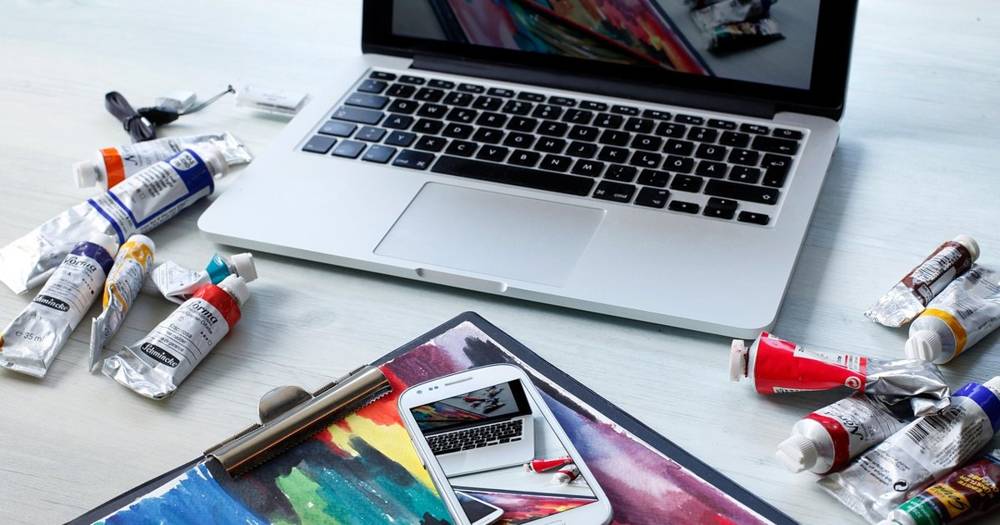
For some roles, especially those handling sensitive data or requiring specific software, a virtual desktop infrastructure (VDI) or cloud computing service can be a game-changer. It allows you to access a secure, standardized work environment from any device.
My team recently migrated some of our development environments to the cloud, and the flexibility it offered was incredible. Developers could work from home on their personal machines, yet still access a powerful, consistent environment.
Accessing Your Work Environment Anywhere
- Amazon WorkSpaces: Provides a fully managed, secure, cloud-based desktop experience. It's excellent for scaling remote teams and ensuring everyone has access to the same applications and resources, regardless of their physical location.
- Microsoft Azure Virtual Desktop: Offers a comprehensive desktop and app virtualization service running in the cloud. It's particularly appealing for organizations already invested in the Microsoft ecosystem, providing a familiar and integrated experience.
- Google Cloud Platform (GCP) for remote workstations: While not a direct VDI product, GCP allows you to set up powerful virtual machines that act as remote workstations. This is ideal for tasks requiring high computational power, like video editing or data analysis.
Wellness & Focus Enhancement Tools
Remote work can blur the lines between professional and personal life, leading to burnout if not managed carefully. Taking care of your mental and physical well-being is just as important as meeting deadlines. These tools help create boundaries and promote healthy habits.
I used to work straight through lunch, thinking I was being productive. It only led to fatigue and decreased focus in the afternoon. Now, I schedule regular breaks and even short meditation sessions, and it's made a huge difference.
Maintaining Balance and Productivity
- Calm/Headspace: These meditation and mindfulness apps offer guided sessions, sleep stories, and calming music. Even 10 minutes a day can significantly reduce stress and improve focus. I start my mornings with a quick guided meditation.
- Forest App: (Yes, again!) Beyond just focus, it encourages you to step away from your phone, which is crucial for digital detox and promoting mental breaks.
- Stretchly: A simple, free app that reminds you to take short breaks and perform simple stretches throughout the day. It's a lifesaver for preventing back pain and eye strain from prolonged sitting.
Remember, your well-being directly impacts your productivity. Don't skip those breaks or push yourself to the point of exhaustion. It's a marathon, not a sprint.
Must-Have Hardware & Accessories
While software tools are fantastic, don't underestimate the impact of good hardware on your remote work experience. A comfortable, efficient setup can prevent physical strain and boost your overall output significantly. It's an investment in yourself.
I learned this the hard way with a cheap office chair. After months of back pain, I finally invested in an ergonomic one, and it was one of the best decisions I've made for my remote office.
Upgrading Your Remote Office
| Category | Recommended Item | Why It's Essential |
|---|---|---|
| Monitor | Dell UltraSharp U2723QE | A high-resolution external monitor drastically improves screen real estate and reduces eye strain. This Dell model offers excellent color accuracy. |
| Keyboard | Logitech MX Keys S | Comfortable, quiet, and responsive typing experience. Backlighting is a bonus for low-light conditions. |
| Mouse | Logitech MX Master 3S | Ergonomic design, customizable buttons, and seamless multi-device switching. A game-changer for long work sessions. |
| Webcam | Logitech C920s Pro HD Webcam | Built-in laptop cameras often lack quality. This external webcam provides sharp video for professional calls. |
| Headset | Sony WH-1000XM5 | Excellent noise-canceling headphones are crucial for focus and clear communication in noisy environments. |
| Ergonomic Chair | Herman Miller Aeron | Prevents back pain and discomfort during long hours. A significant investment, but worth every penny for your health. |
| Docking Station | Anker 563 USB-C Docking Station | Simplifies cable management, allowing you to connect all peripherals with a single USB-C cable to your laptop. |
Frequently Asked Questions
A. For a new remote worker, a reliable communication and collaboration platform like Slack or Microsoft Teams is absolutely crucial. It's where you'll connect with your team, get updates, and share information, essentially replicating the office environment virtually.
A. It's a common challenge! I recommend using tools like the Forest App to block distractions during deep work. Also, schedule specific times to check emails and messages, and turn off notifications for non-essential apps during focused work periods. Creating a dedicated workspace helps too.
A. Yes, absolutely. A VPN encrypts your internet connection, protecting your data from potential threats, especially when you're connected to public Wi-Fi networks. It's a vital layer of security that every remote worker should utilize to safeguard company and personal information.
A. Software apps generally update automatically or prompt you regularly, which is great for security and new features. For hardware, I'd say evaluate your needs every 2-3 years, or when you notice performance issues or discomfort. Keep an eye on new ergonomic advancements!
Choosing the right tech tools and apps for remote work in 2026 isn't just about productivity; it's about building a sustainable and healthy work life. I've seen firsthand how a well-curated digital toolkit can reduce stress and allow you to truly thrive outside the traditional office. What's your favorite remote work tool that you can't live without? Share your thoughts in the comments below!
💡 Discover More Remote Work Tips